Account Information Service Provider
Temenos Digital Web Channel and Mobile Native is enhanced to support the Account Information Sharing consent flow as per the UK open banking standards. The PSU can choose the account permissions in the TPP to share and select the accounts based on the user selection in the digital flow.
The Temenos Digital mobile banking application supports third party application in receiving the account-sharing consent details from the same device. The user can view the list of open banking eligible accounts post third-party provider authentication and can select the accounts to which the information can be shared after approval by the user. The user can also Reject the consent request. The user will be redirected to the Third-party post approving or rejecting the consent.
When the user request account information from the selected bank through a third-party provider, the third-party provider application will invoke the URL sent by the bank server with an authentication token and the UK AIS consent details to the Temenos Digital channel. Temenos Digital banking channel will be invoked and show the customized authentication screen.
The following sequence diagram explains the integration workflow of the UK AIS Consent flow between a third party provider (TPP), Temenos Digital channel and Transact core banking system.

User Authorization
A third-party app redirects the users to the Temenos Digital banking app to authorize consent. Follow these steps to provide the authorization:
- The user can see a page (configurable) showing information as an authorized third-party application to read your account information. Click Continue to proceed.
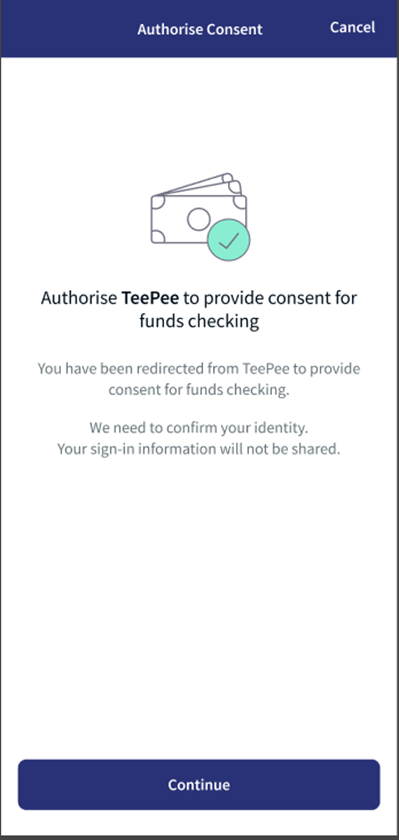
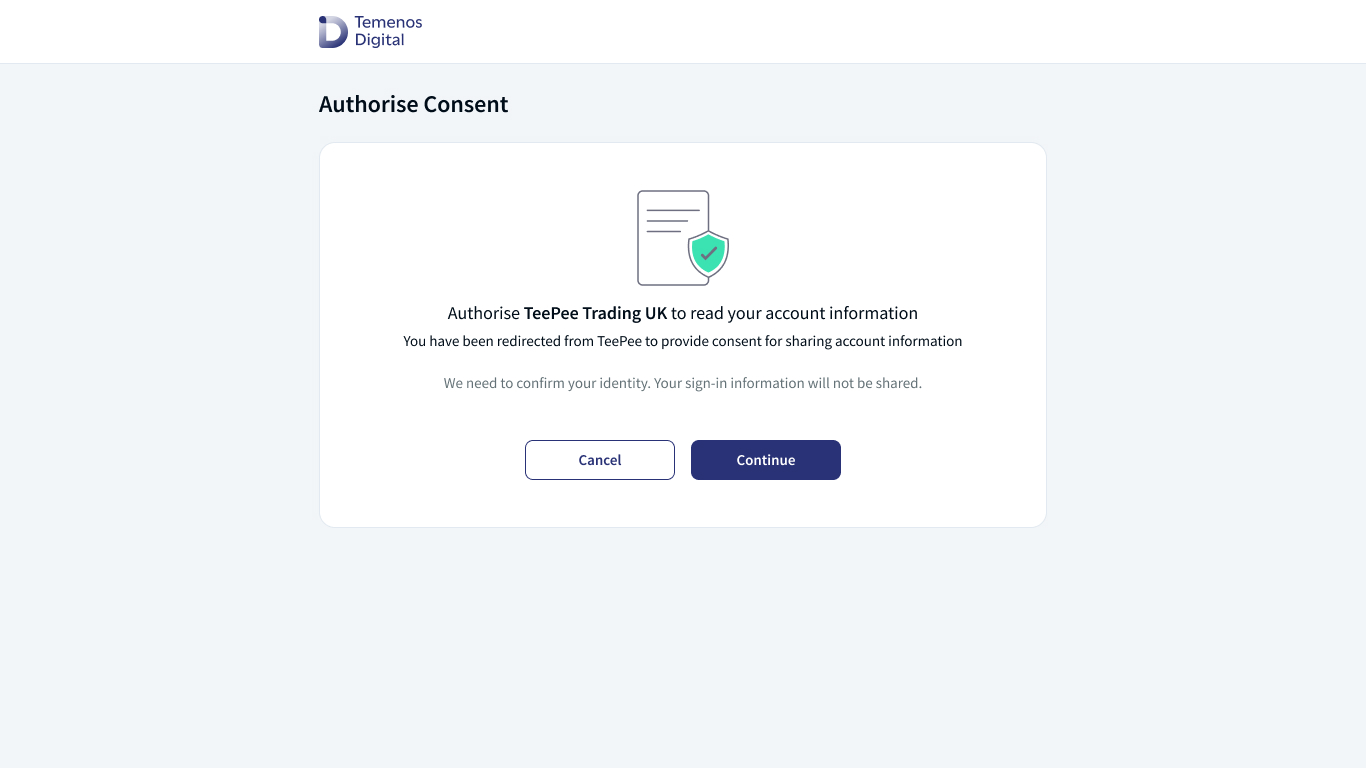
- The user can view the Sign In page. Enter the credentials, Username and Password.
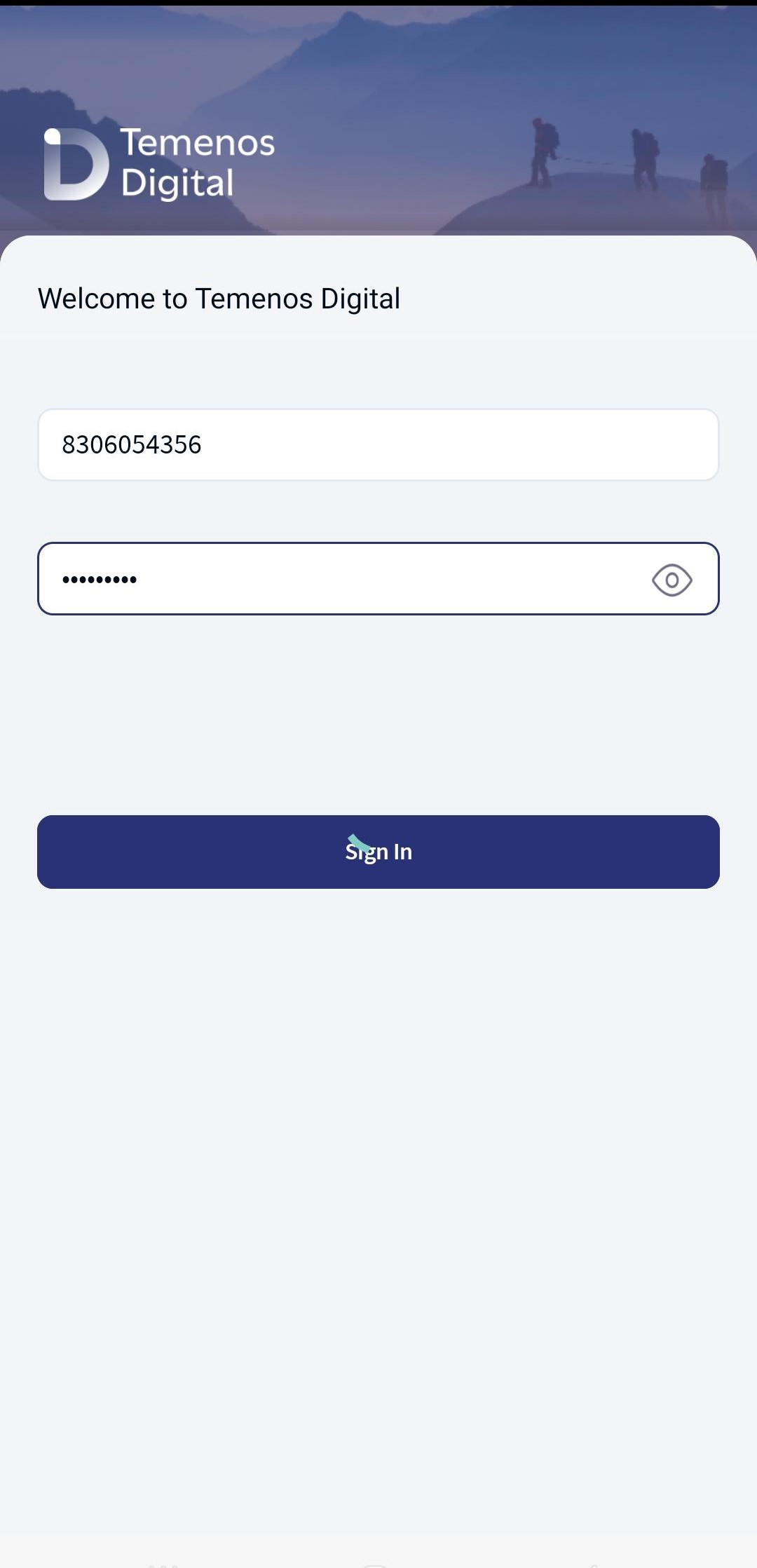
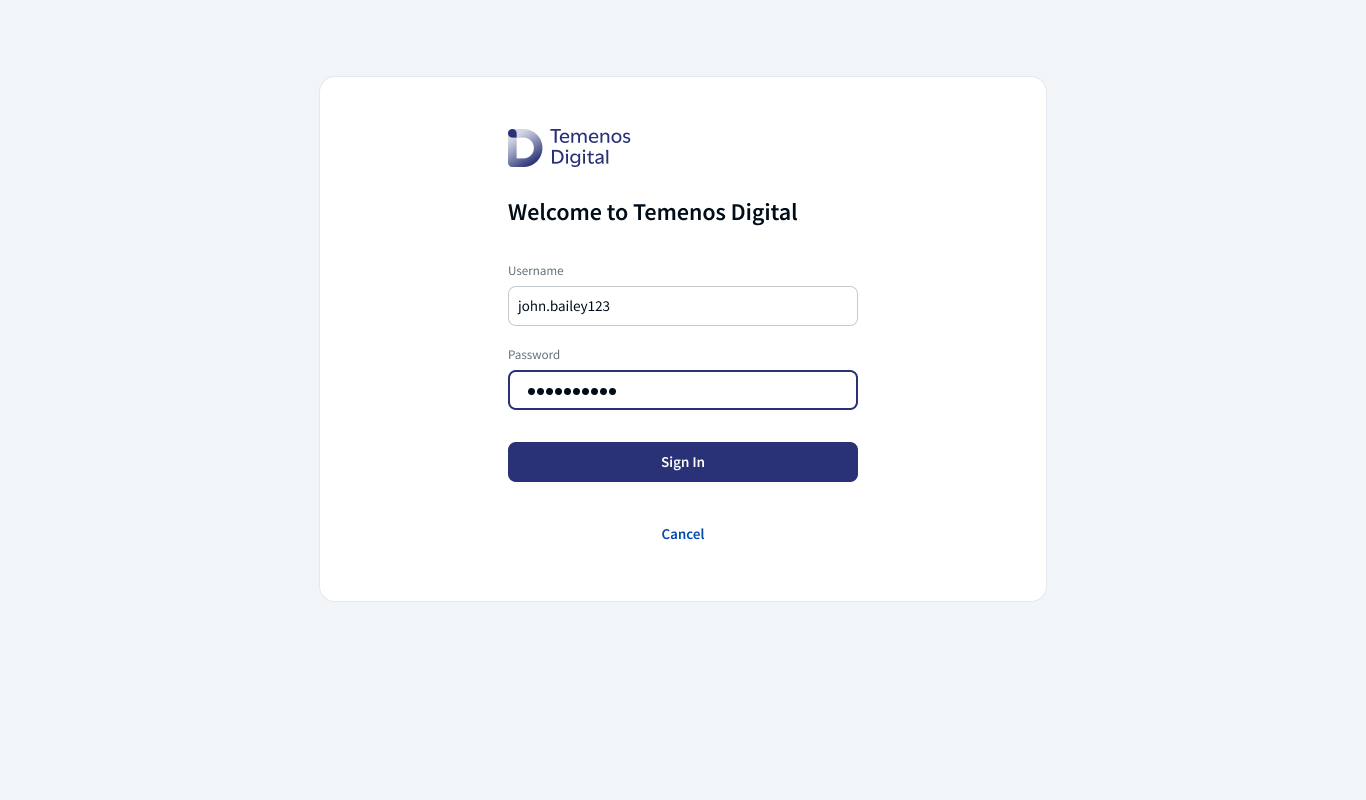
- After Sign In, the user can view the list of accounts with the details to share with the third party provider. The user has the option to Approve or Reject the consent.
- For the UK open banking consent, all the PSD2 eligible accounts will be listed with an option to select the accounts to which information will be shared. After selecting the account Approve option will be enabled.
- A hyperlink What info will I share that will provide an insight to the user on the list of information that will share to the TPP basis consent approval.
- The detailed permissions that are being shared to the TPP are shown in the What info will I share pop up based on the UK open banking standards.
- If the user clicks Approve, the application displays an acknowledgment message: Your request was successful. Click Continue, the application will redirect the user to the third-party provider, or the user will be redirected automatically in x seconds (Configurable).
- If the user click Reject, the application displays an acknowledgment message: You have cancelled the consent request. Click Continue, the application will redirect the user to the third-party provider, or the user will be redirected automatically in x seconds (Configurable).
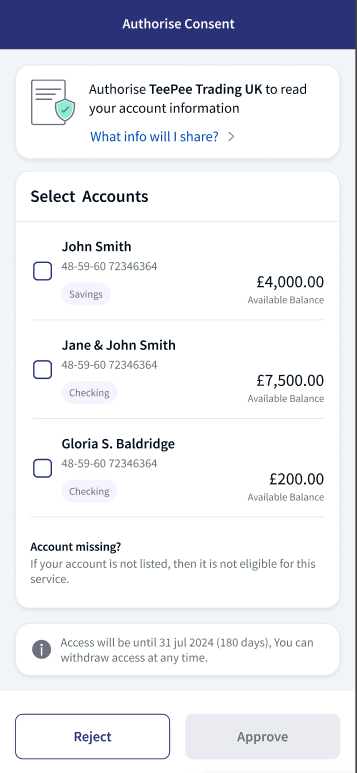
Accounts 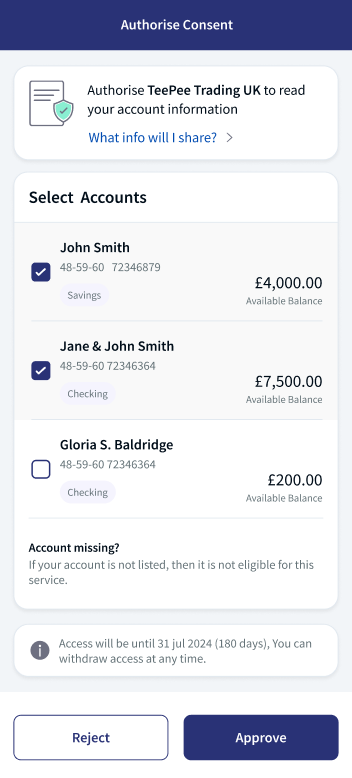
Select an account 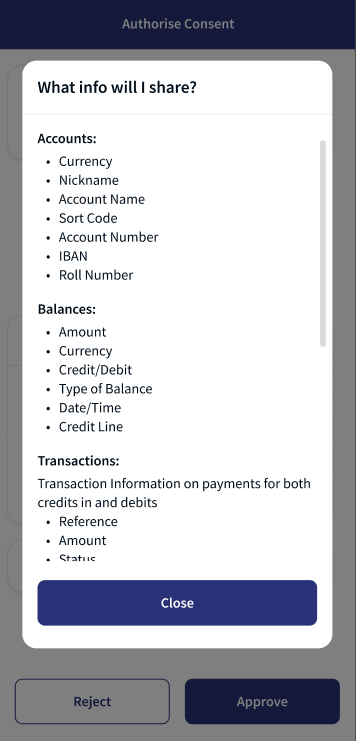
Info Sharing 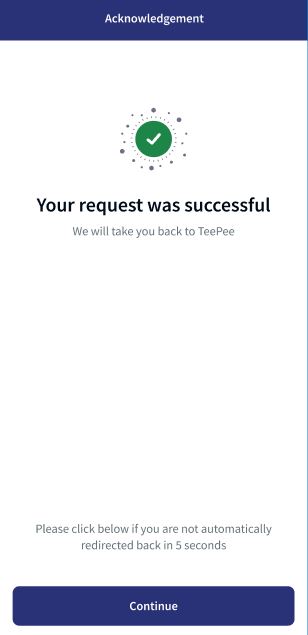
Mobile application Acknowledgment .png "Account Information (UK)")
Account Information (UK) .png "Info Sharing (UK)")
Info Sharing (UK) .jpg "Acknowledgement")
Acknowledgment select an Account Click Reject 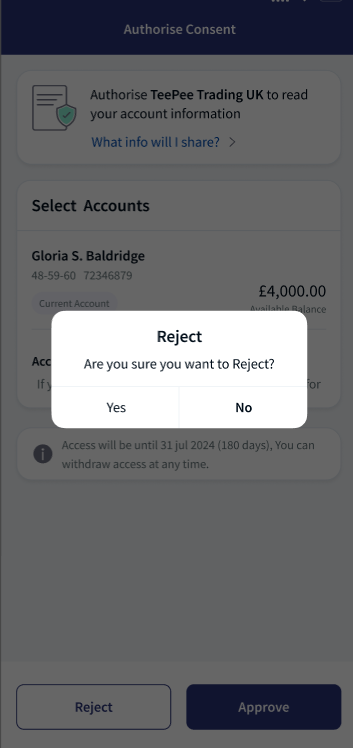
Click Reject 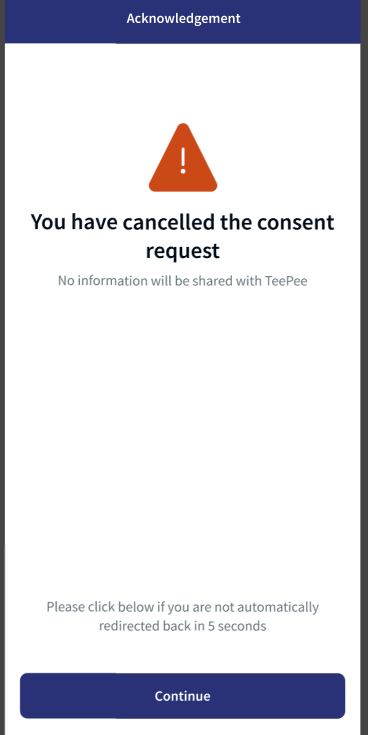
Confirmation Account Information (UK) Info Sharing (UK) 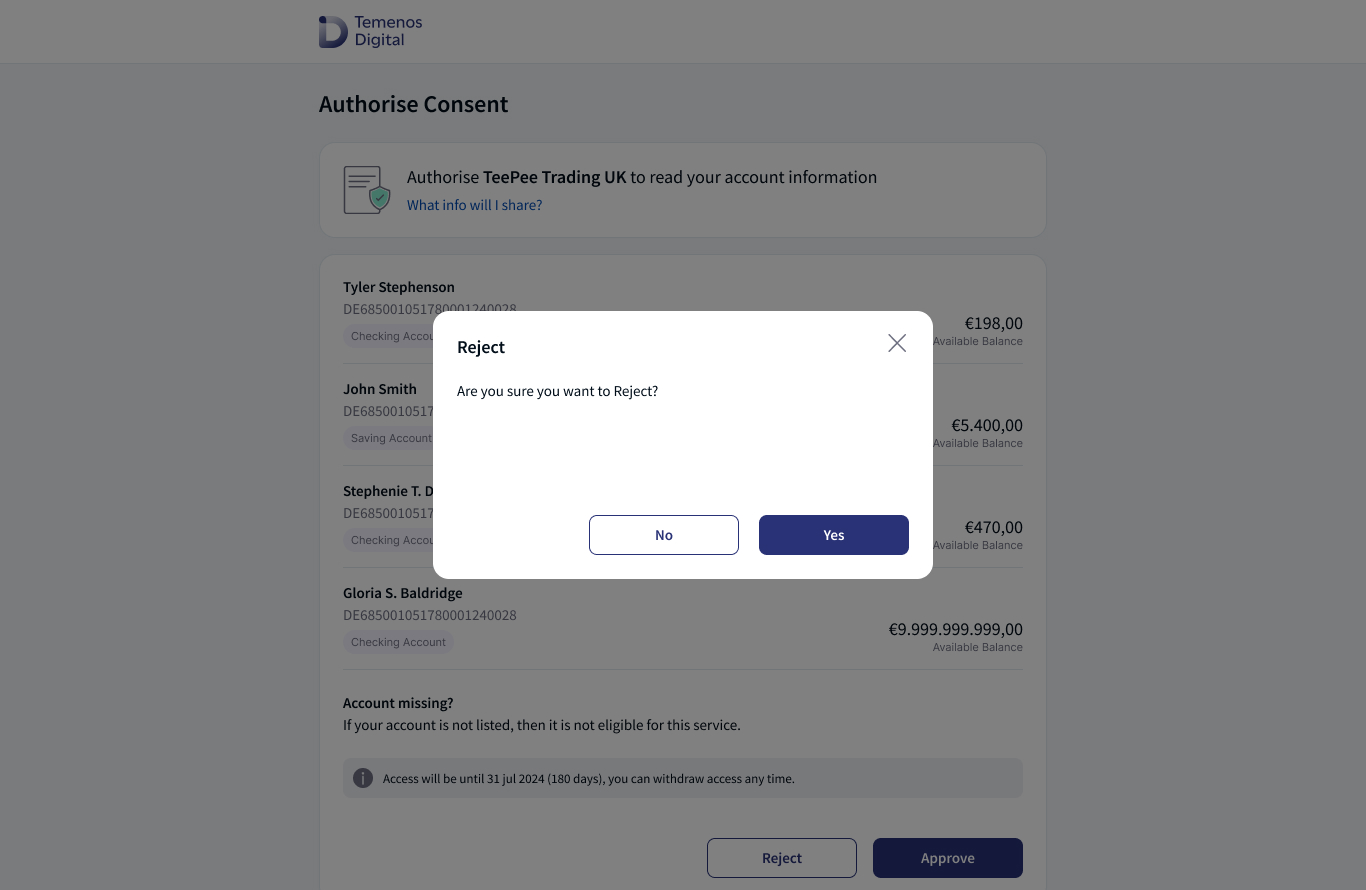
Click Yes 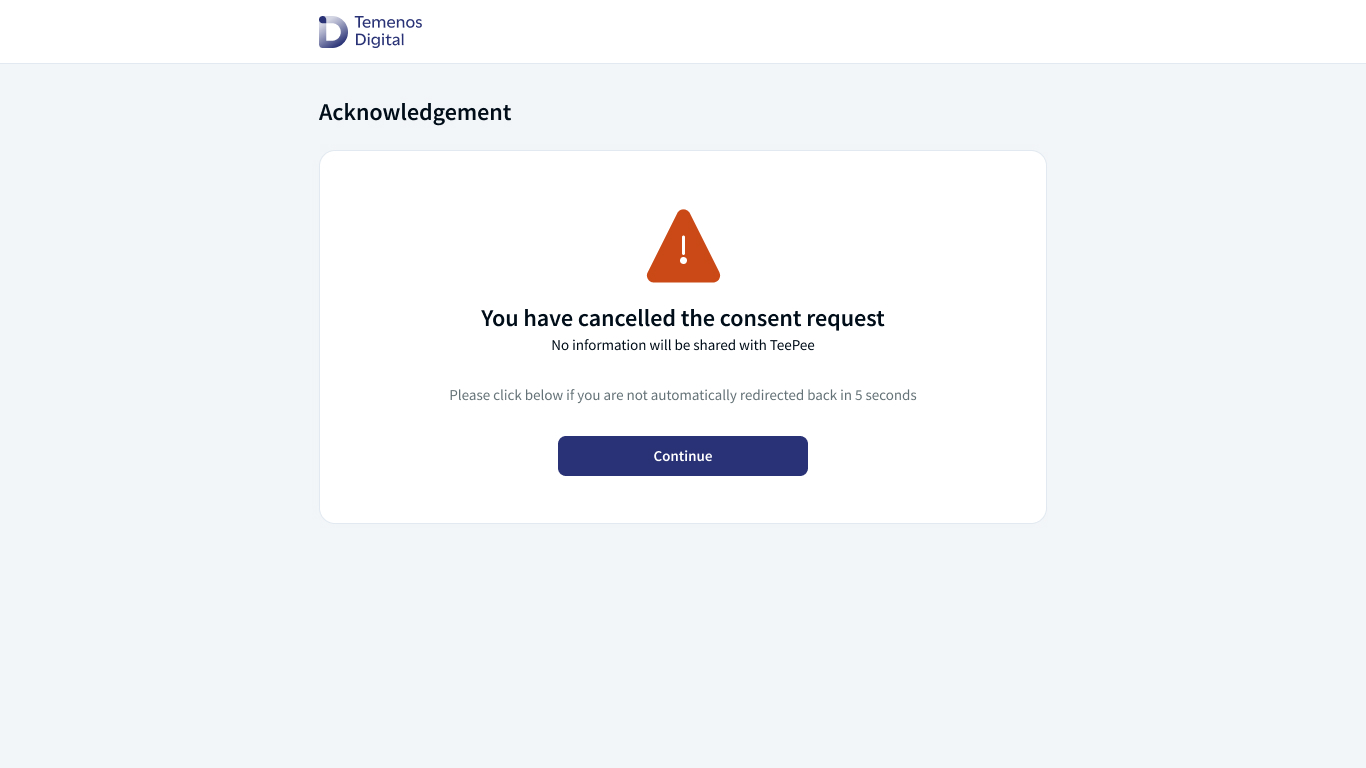
Acknowledgment When the user has installed and not logged into the online and mobile banking application, user will view the Terms and Conditions (Existing post login Terms and Conditions) acceptance on the login page.
Error Scenarios
The following are the error scenarios that may occur when the user is facing issues with the application:
- When the user does not have the permissions enabled in Spotlight application to approve or reject the consent.
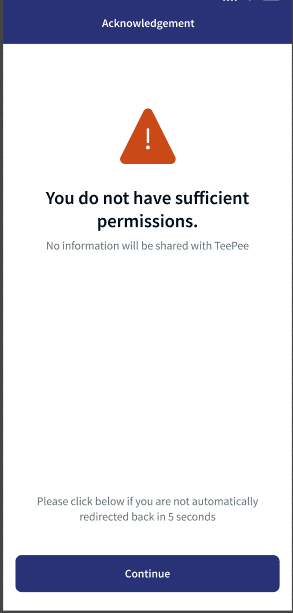
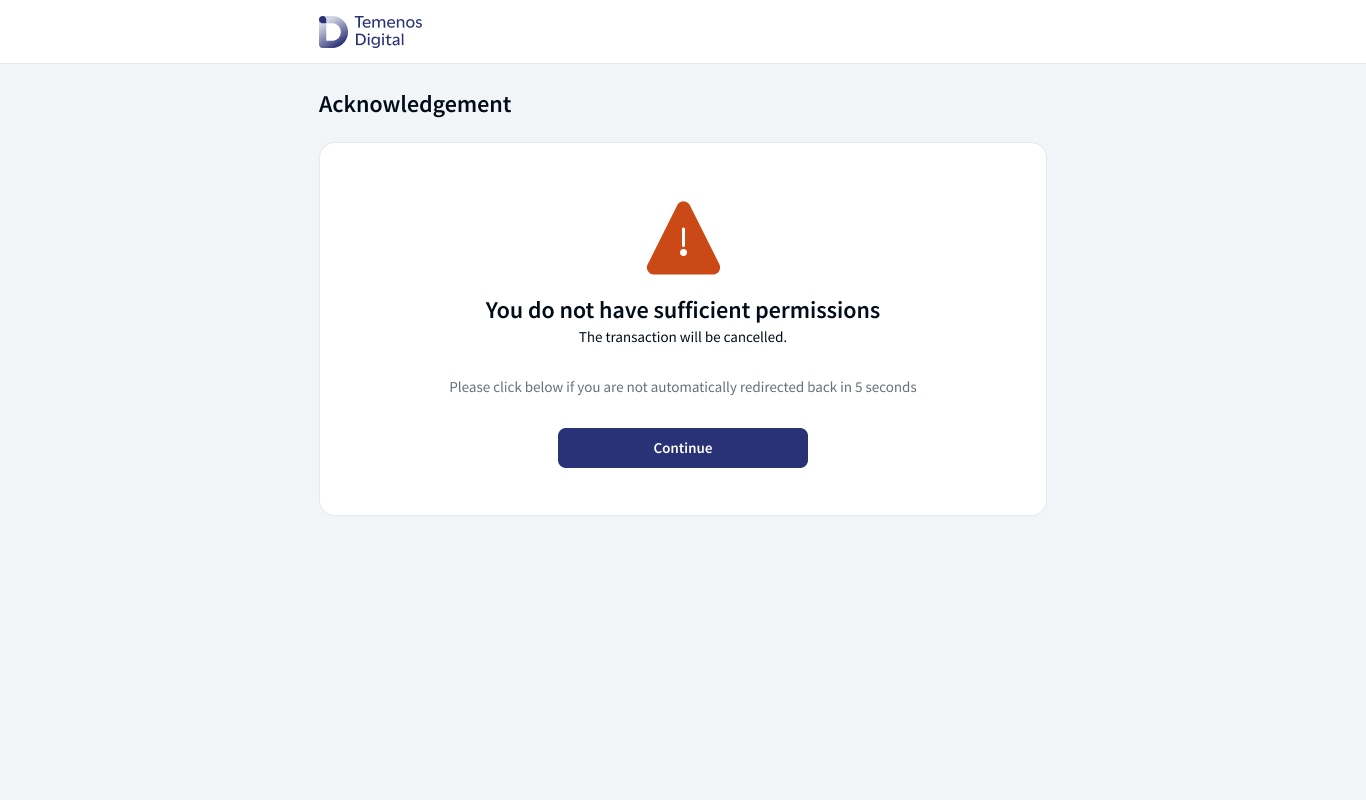
- When the users account is not eligible as a part of the Open Banking eligibility check.
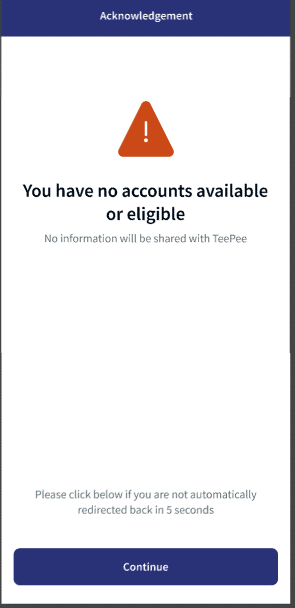
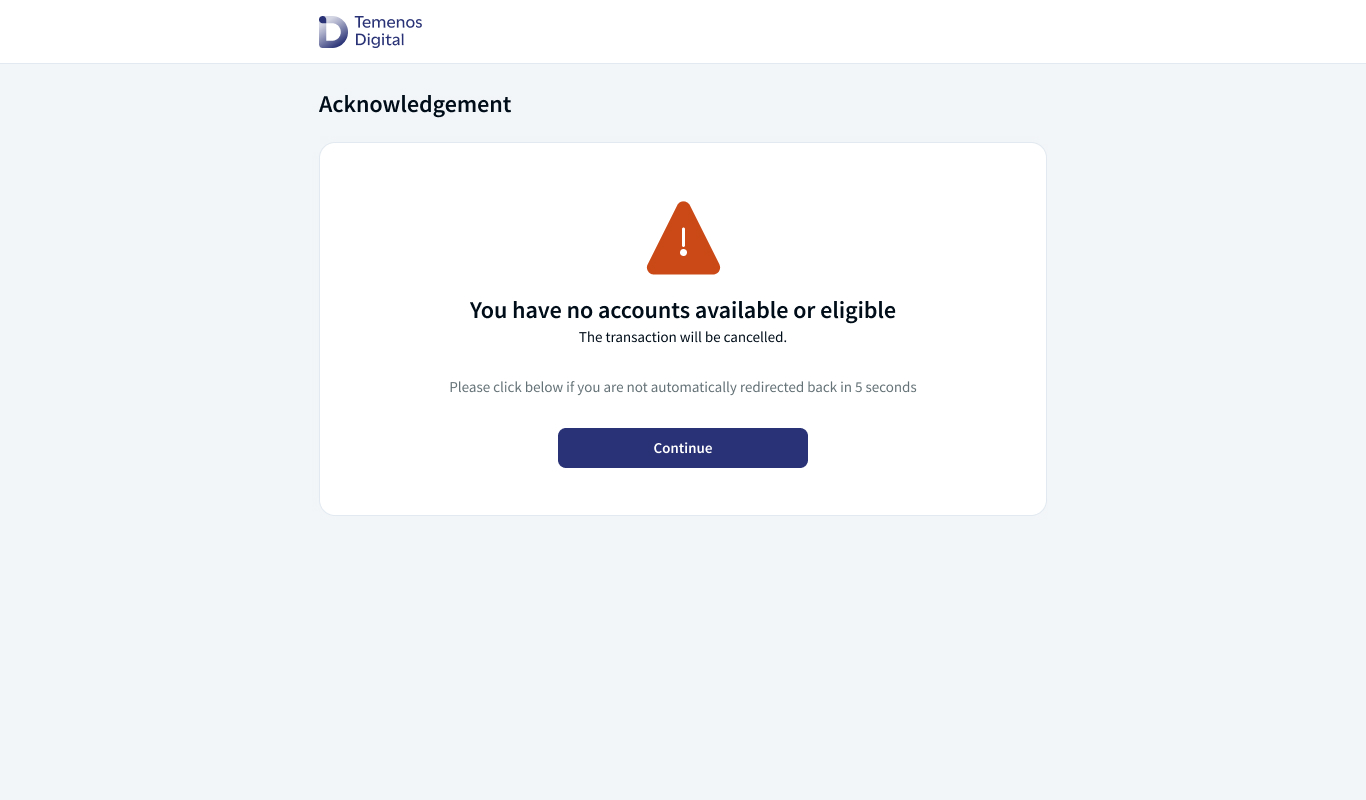
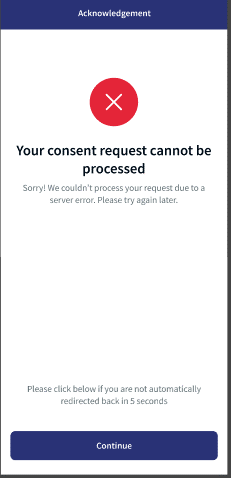
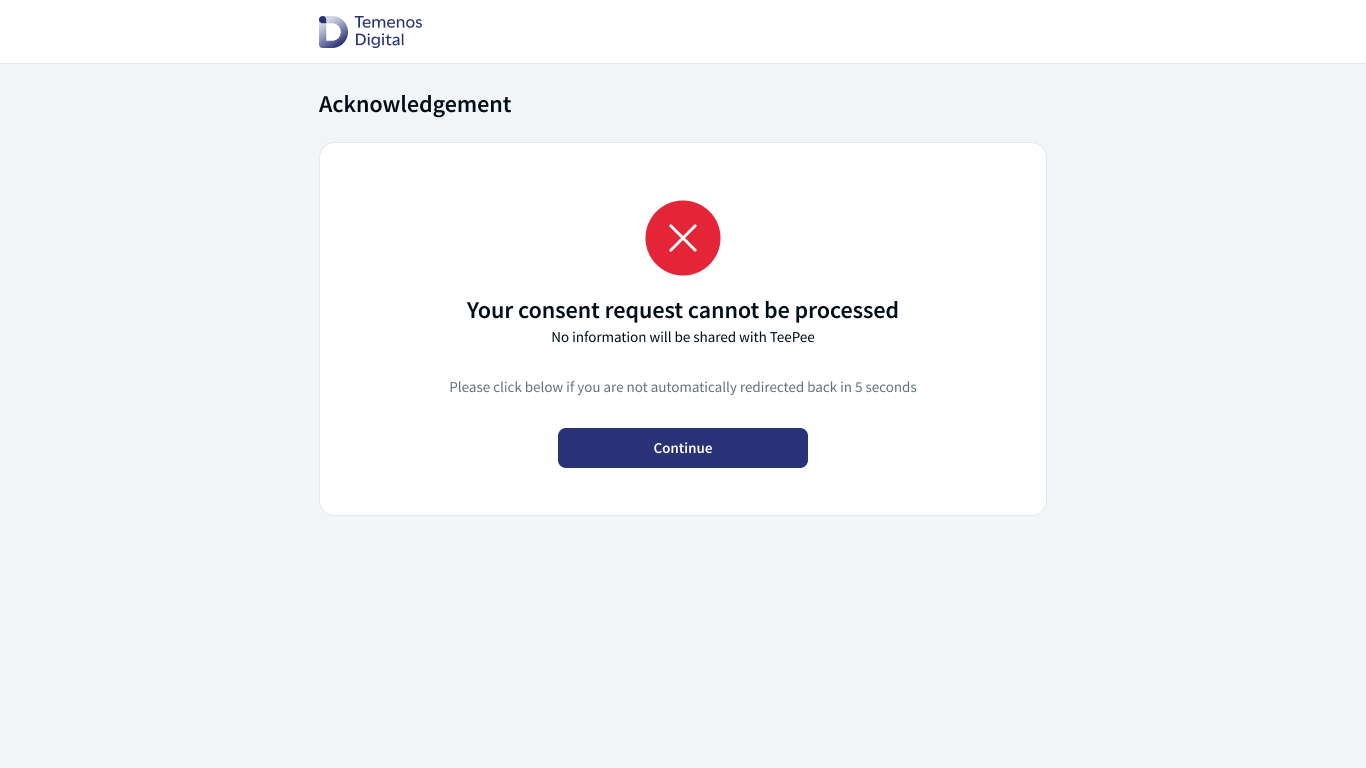
- When there is a server error where Digital application does not get a response from the back-end systems.
Spotlight Configurations
In Spotlight application -> Feature and Facilities, open banking access and open banking account consent details are defined.
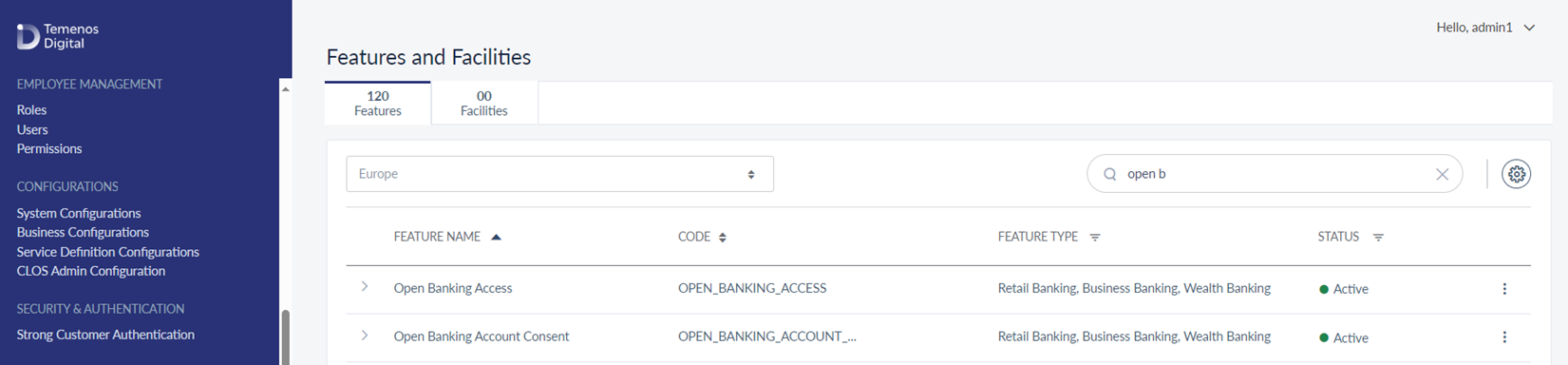
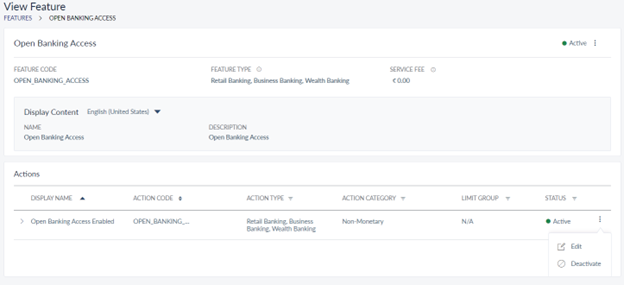
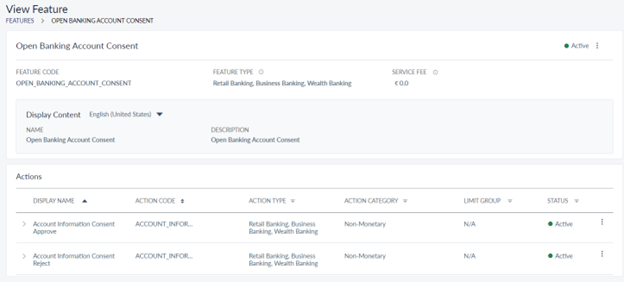
The following features and actions are available in the Master data management level to manage or enable the Approve or Reject actions to the end users.
| Feature Name | Feature Code | Action Name | Action Code | Description |
|---|---|---|---|---|
| Open banking account consent | OPEN_BANKING_ACCOUNT_CONSENT | Account information consent approve | ACCOUNT_INFORMATION_CONSENT_APPROVE | Enables the accounts with approve option of the Account information consent initiated from TPP and shown to the user post login screen. |
| Open banking account consent | OPEN_BANKING_ACCOUNT_CONSENT | Account information consent reject | ACCOUNT_INFORMATION_CONSENT_REJECT | Enable the accounts with reject option of the Account information consent initiated from TPP and shown to the user post login screen. |
| Open banking access | OPEN_BANKING_ACCESS | Open banking access enabled | OPEN_BANKING_ACCESS_ENABLED | Enable the user for performing the open banking consent (AIS/ CBPII) and payment (PISP) approval and rejection. |
Fabric Configurations
The following Server and Client properties must be configured in the Fabric run time parameters.
Server Properties
| Property | Supported Values |
|---|---|
| PSD2_BACKEND | This property can have either STUB, T24 or Salt edge. |
| PSD2_DATE_FORMAT | This property defines the format of the data that should be displayed in Open banking screens. This property supports all the java date formats. |
Client Properties
| Property | Description |
|---|---|
| TPP_NAVIGATION_TIMER |
The Value 0 indicates that the acknowledgment screen will not be displayed in the Digital Banking app, it will directly navigate to TPP. Any other value indicates that the acknowledgment screen will be displayed for that number of seconds before navigating to TPP. |
| OPEN_BANKING_GEOGRAPHY |
This property can have values EU, UK. This configuration identifies whether open banking flow should follow Berlin group standards or UK open banking standards. |
Time Configuration
When redirecting from third party application to the banking application, the bank need to set the following configurations to show or hide the pre login info screen at the time of implementation.
| Variable | Description |
|---|---|
|
authentication MA- presentation controller -> isNewLogintobeShown
|
|
An Identity service is being developed in Fabric to support the authentication of incoming request from TPP for Account details, transaction and beneficiary details to the core system. The core system can utilize this service to validate that the incoming request by TPP is from an authenticated online banking user. Post validation, the core system responds to TPP with the requested details. For more information on the Identity service, click here.
Manage Account Access
Once the user approves an account information consent via the Open banking flow, the user can view the Active consents provided in the Digital banking channel or mobile native application in Manage Account Access. For more information, see Manage Account Access.
In this topic